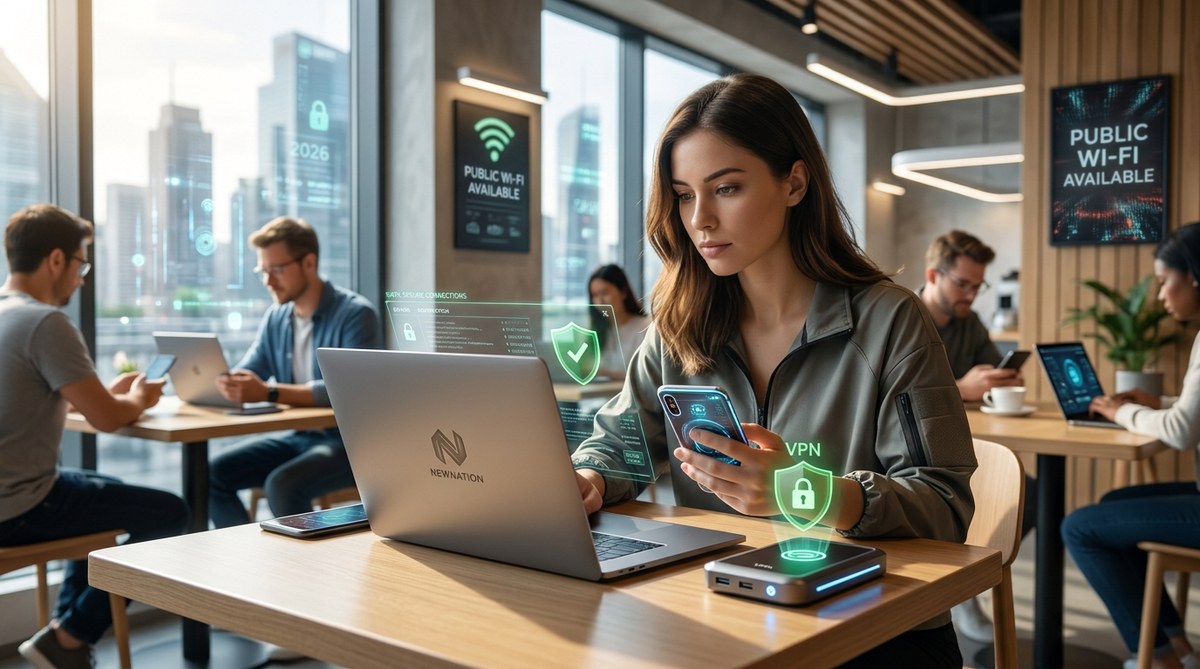
You grab a coffee, open your laptop, and connect to the free Wi-Fi at the corner cafe. It feels harmless. But that network could be a playground for hackers. Public Wi-Fi is convenient, but it comes with real privacy risks. The good news? You can protect yourself without giving up your remote work lifestyle.
Public Wi-Fi networks in coffee shops, airports, and hotels are often unencrypted, making your data visible to anyone on the same network. Hackers can intercept passwords, emails, and banking details. But you don’t have to disconnect. By using a VPN, enabling HTTPS everywhere, turning off file sharing, and avoiding sensitive transactions, you can significantly reduce your risk and stay protected. This guide walks you through each step to keep your information safe in 2026.
The Real Threat of Public Wi-Fi
Most people think public Wi-Fi is safe because it requires a password. In reality, the password only grants access to the network. It does not encrypt your traffic. Anyone else on that same network can see what you are doing. In 2026, with more remote workers and students using cafes and coworking spaces, the risk is higher than ever.
Imagine you are checking your bank balance while waiting for your flight. A person two tables over is running free software that captures data packets. They can see your login credentials, your emails, and even your social media messages. This is not an overblown scenario. It happens every day.
Common Attacks You Should Know
Hackers have several methods to steal your data on public Wi-Fi. Understanding them helps you stay alert.
- Evil Twin Networks: A hacker sets up a fake Wi-Fi network with a name similar to the real one. You connect to it because it looks legit. The hacker then controls everything you send.
- Man in the Middle (MitM) Attacks: The hacker positions themselves between your device and the internet. They intercept data without you knowing.
- Snooping and Packet Sniffing: Using tools like Wireshark, attackers capture unencrypted data traveling over the network.
- Session Hijacking: After you log into a website, a hacker steals your session cookie. They can impersonate you on that site without needing your password.
These attacks do not require advanced skill. Freely available tools make them accessible to anyone with basic tech knowledge.
How to Protect Your Privacy: A Step by Step Guide
Follow these steps before connecting to any public Wi-Fi hotspot. They will dramatically lower your risk.
- Use a VPN every time you connect. A Virtual Private Network encrypts all your internet traffic. Even if a hacker intercepts your data, they only see scrambled text. Choose a reputable VPN service that does not log your activity.
- Enable HTTPS everywhere. Most modern websites use HTTPS, but some older sites still use HTTP. Install a browser extension that forces HTTPS connections. This ensures your data is encrypted between your browser and the website.
- Turn off file sharing and AirDrop. Your device may be set to share files with other devices on the same network. Disable this feature in your system settings. On Windows, turn off network discovery. On macOS, disable AirDrop when on public Wi-Fi.
- Forget the network after each session. When you leave the cafe, tell your phone or laptop to forget the network. This prevents it from automatically reconnecting to a potentially fake network with the same name.
- Use a password manager. Do not type passwords manually on public Wi-Fi. A password manager fills them in over encrypted connections and reduces the risk of keyloggers. For more on this, check out our article: are password managers actually safe.
What to Avoid on Public Networks
Just as important as what you do is what you do not do. Here are behaviors to skip while on public Wi-Fi.
- Avoid logging into online banking or making purchases. Wait until you are on a trusted network.
- Do not access sensitive work documents or company portals. Your employer may require a VPN, but even with one, public networks add risk.
- Refrain from entering passwords on sites that do not use HTTPS. Look for the padlock icon in the address bar.
- Do not leave your device unattended. Physical theft is still a major threat in coffee shops and airports.
Tools and Settings That Make a Difference
Not all protections are equal. The table below compares common methods and their effectiveness.
| Tool / Setting | What It Does | Effectiveness |
|---|---|---|
| VPN | Encrypts all traffic to a secure server | High |
| HTTPS only | Encrypts browser traffic to websites | Medium (only for web) |
| Firewall | Blocks unwanted incoming connections | Medium |
| Two factor authentication | Adds a second layer to logins | High (if enabled) |
| Disable auto connect | Prevents joining unknown networks | High |
| Browser extension force HTTPS | Forces sites to use HTTPS | Medium |
A combination of these tools works best. Do not rely on only one layer.
Expert Insight: Why Your VPN Isn’t Enough
“A VPN is a critical tool, but it is not a silver bullet,” says Sarah Chen, a cybersecurity analyst at a major US university. “If you connect to a malicious network that spoofs a login page, the VPN still encrypts your traffic, but you are sending your credentials to the hacker’s server. Always verify the network name with staff before connecting. And never ignore browser warnings about certificates.”
This advice is especially relevant in 2026, as evil twin attacks become more sophisticated. Always double check that you are on the legitimate network.
Stay Safe Without Sacrificing Convenience
You do not have to give up public Wi-Fi to protect your privacy. With a few simple habits, you can work from anywhere without worry. Use a VPN, enable HTTPS, turn off sharing, and avoid sensitive tasks. Treat every public network as a potential threat. A little caution goes a long way.
And if you want to understand how your data can be used even when you are not on public Wi-Fi, read our article on 5 ways your data is being used without your consent.
Stay safe out there. Your privacy is worth the extra two minutes of setup.