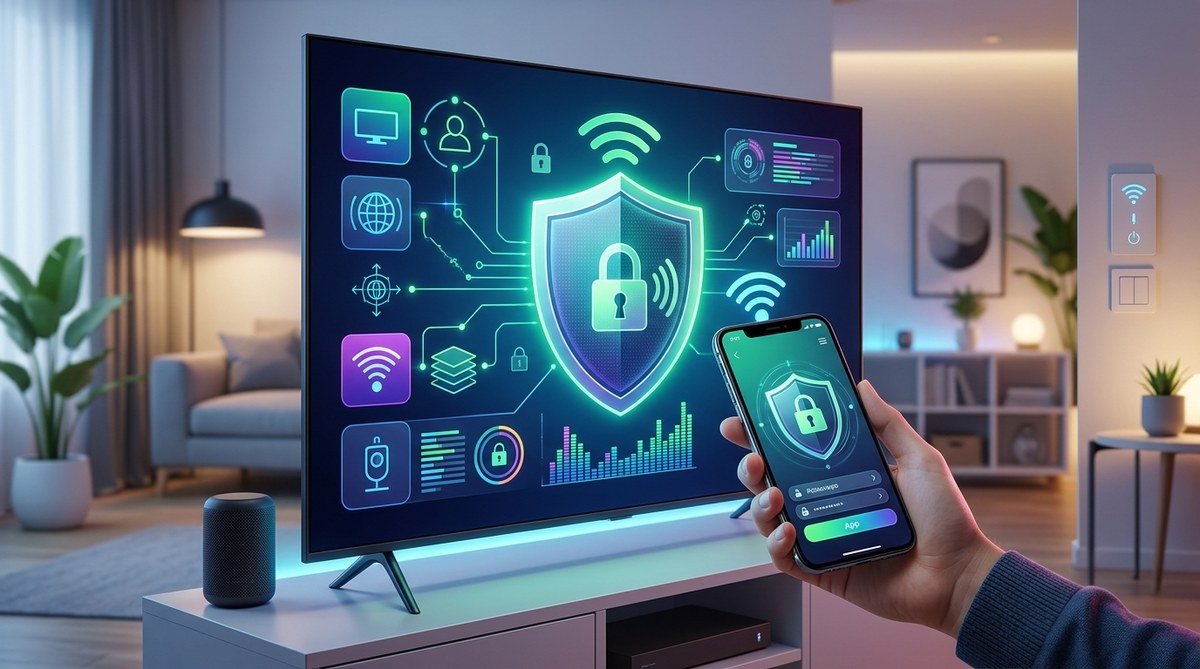
Your television sits in the most private room of your home. It plugs into the wall, connects to your Wi-Fi, and quietly watches back. Not with eyes, but with software. Every show you stream, every menu you scroll, every word you say near the remote gets collected, packaged, and sold to advertisers. Smart TV data collection is real, it is massive, and most owners never knew they agreed to it.
The good news? You can shut most of it down in under fifteen minutes. No, you do not need to throw away your TV or wrap it in foil. You just need to know which buttons to press.
Smart TVs from Samsung, LG, Sony, Roku, and Amazon collect your viewing habits, voice commands, and even on-screen content using Automatic Content Recognition. You can disable ACR, opt out of ad tracking, turn off voice listening, and tighten your home network settings in just a few minutes. A separate streaming stick with better privacy controls gives you even more protection without buying a new TV.
How Smart TVs Actually Watch You
Before you change any settings, it helps to understand what is happening behind the screen. Smart TV manufacturers use a technology called Automatic Content Recognition, or ACR. This is the engine that identifies everything playing on your display, including live TV, streaming movies, and even video games. It takes snapshots of what is on screen, matches them against a database, and logs the data.
That information gets combined with your IP address, your device ID, and sometimes your location. It flows into a profile that advertisers use to serve you targeted commercials. You have probably noticed this: you watch a trailer for a new series, and the next day you see an ad for the same show on your phone. That is ACR at work.
Voice assistants add another layer. Many newer TVs have built-in microphones that listen for wake words like "Alexa" or "Hey Google." Even when they are not supposed to be recording, privacy researchers have shown that these microphones can capture fragments of conversation. Some manufacturers store those recordings on cloud servers.
"The scary part is that most people never read the privacy policy that came with their TV. Buried inside those terms is permission to collect everything on screen and send it to third parties." - Consumer Reports privacy team, 2025 report on smart TV tracking.
Here is what gets collected most often:
- Every show, movie, or app you launch
- How long you watch specific content
- Your Wi-Fi network name and signal strength
- Voice commands and accidental recordings
- Your physical location based on IP address
- Device identifiers that link back to your household
Manufacturers sell this data to data brokers. Brokers package it with other sources to build a detailed profile of you, your income bracket, your political leanings, and your shopping habits. The whole system runs on an assumption: you will never dig into the settings menu to stop it.
Step-by-Step: How to Stop Smart TV From Spying
The process varies by brand, but the logic is the same across every platform. You need to disable ACR, turn off ad tracking, and mute the microphone.
Samsung TVs (Tizen OS)
Samsung was one of the first brands caught collecting voice data from living rooms. Their current models still track aggressively unless you intervene.
- Press the Home button on your remote.
- Go to Settings (the gear icon).
- Select All Settings, then Privacy & Security.
- Turn off Viewing Information Services. This disables ACR.
- Go to Voice Recognition Settings and select Off.
- Return to the main Privacy menu and select Interest-Based Advertising. Toggle it to Off.
- Scroll down to Samsung Privacy Policy and find the opt-out link for data sharing.
Samsung also offers a "Smart TV Experience Improvement" toggle. Keep that off. It shares diagnostic data and viewing logs with their servers.
LG TVs (webOS)
LG calls their ACR system "Live Plus" or "LG Voice Information." Both need to be disabled manually.
- Press the Settings button on your remote.
- Choose All Settings, then General.
- Select Live Plus and set it to Off.
- Go back to General and select Privacy Settings.
- Toggle Ad Personalization off.
- Under Voice Information, select Off.
- Review the User Agreements tab and decline any optional data sharing.
LG also hides a setting called "Smart Interactivity" in some models. If you see that option, turn it off. It allows the TV to send content recognition data for interactive ads.
Sony TVs (Google TV / Android TV)
Sony uses Google's operating system, which means you have to deal with Google's tracking plus Sony's own ACR.
- Open Settings from the home screen.
- Go to Privacy and select Advertising.
- Choose Limit Ad Tracking and enable it.
- Go back to Privacy and select Usage & Diagnostics. Set it to No.
- Open Settings, then Device Preferences, then Google Assistant.
- Turn off Google Assistant completely if you do not use it.
- Disable Microphone Access for all apps.
Sony TVs also include a feature called "Samba Interactive TV." This is their ACR system. You can disable it in the Privacy menu under Samba TV Services.
Roku TVs and Streaming Devices
Roku is one of the more transparent platforms, but it still collects data by default.
- Press the Home button on your Roku remote.
- Go to Settings, then Privacy.
- Select Advertising and check Limit Ad Tracking.
- Go back to Privacy and select Smart TV Experience.
- Uncheck Use info from TV input to help improve your experience. This disables ACR.
- Under Microphone, turn off any app that does not need voice access.
Roku also lets you view the data they have collected. In the same Privacy menu, select Manage Data and you can request a copy or delete it.
Amazon Fire TV
Fire TV runs a modified version of Android, and Amazon uses it to push ads and collect viewing habits.
- Go to Settings, then Preferences.
- Select Privacy Settings.
- Turn off Device Usage Data.
- Turn off Collect App and Over-the-Air Usage Data.
- Go back to Preferences and select Interest-Based Ads.
- Toggle it to Off.
- Under Voice Services, disable Alexa if you do not need it.
Amazon also lets you manage your advertising preferences on their website. Log into your Amazon account, go to Your Account, then Advertising Preferences, and opt out of personalized ads.
Common Privacy Mistakes People Make
Even after changing settings, many people accidentally leave a backdoor open. Here are the most common errors and how to fix them.
| Mistake | Why It Hurts Privacy | Fix |
|---|---|---|
| Only disabling one setting | ACR and ad tracking are separate toggles. Disabling just one still lets the other run. | Check every Privacy submenu on your TV. |
| Leaving voice assistant active | Microphones stay on even if you never use them. Recordings can be triggered accidentally. | Turn off voice assistant entirely, not just mute the mic. |
| Using the TV's built-in apps | First-party apps often have deeper access to system data than external streamers. | Use an Apple TV or a privacy-focused streaming stick instead. |
| Ignoring software updates | Manufacturers sometimes reset privacy preferences after a major update. | Revisit your settings after every firmware update. |
| Skipping the network setup | Your TV can still phone home even after you disable ACR if it has internet access. | Block the TV's MAC address on your router or use a firewall. |
| Forgetting connected devices | Soundbars, Blu-ray players, and game consoles also collect data. | Repeat these steps for every HDMI device that connects online. |
How to Lock Down Your Home Network for Extra Privacy
Changing the settings on the TV itself is step one. Step two is making sure the TV cannot talk to tracking servers even if a setting secretly re-enables itself.
Use a DNS filter. Services like NextDNS or AdGuard DNS let you block tracking domains at the router level. Every device on your network, including your TV, gets filtered. You do not need to install anything on the TV itself. Just change the DNS settings in your router's admin panel to point to a privacy focused resolver.
Block the TV's internet access entirely. If you stream everything through an Apple TV or a Roku stick, your smart TV does not need to be online at all. Go into the TV's network settings and disconnect the Wi-Fi. Plug in an external streamer and run that device through your privacy settings. Your TV becomes a dumb monitor. No data collection, no ACR, no voice recording.
Create a separate guest network. Some routers let you set up a secondary Wi-Fi network. Put your smart TV and other IoT devices on that network. Isolate them from your main network where your phone and laptop live. Even if the TV gets compromised, the attacker cannot reach your private files.
Turn off Wi-Fi when you are not using smart features. This is not practical for everyone, but if you only stream via a console or a set-top box, keep the TV offline. You can always plug in an Ethernet cable for firmware updates once a year.
What About Voice Assistants? Should You Keep Them?
Voice assistants built into smart TVs are convenient for searching shows and checking the weather. But they come with a privacy cost. Every major manufacturer records voice interactions and stores them temporarily or permanently.
If you use the voice assistant regularly, here is how to limit the damage:
- Go into the voice settings and delete your voice history. Most brands allow you to wipe the stored recordings.
- Mute the microphone physically. Some TVs have a hardware switch on the side or bottom. If yours does, use it.
- Check what third-party apps have microphone access. You can revoke permissions app by app on Google TV and Fire TV.
If you rarely use voice commands, just turn the assistant off entirely. You will lose the convenience, but you will also lose the surveillance.
When Should You Consider Buying a New Streaming Device?
Sometimes the best way to stop a smart TV from spying is to bypass it entirely. External streaming devices like the Apple TV 4K, the Nvidia Shield, or even a simple Chromecast with Google TV give you more control over privacy. You can run them through a VPN, disable their tracking settings, and keep your main TV offline.
External devices update more frequently, have clearer privacy policies, and let you delete your data more easily. An Apple TV, for example, has a single toggle for "Limit Ad Tracking" and a clear data deletion page. That is much simpler than hunting through five submenus on an LG TV.
If your current TV is more than five years old and you are due for an upgrade anyway, consider a model that prioritizes privacy. Some brands, like Panasonic and Philips in certain regions, have started publishing transparency reports. Look for TVs that support "Privacy Mode" or that have hardware microphone shutoffs.
A Simple Privacy Checklist to Follow
Print this or save it to your phone. Run through it once a month and after every operating system update.
- ACR disabled (Live Plus, Viewing Information, Samba, etc.)
- Ad tracking turned off
- Voice assistant disabled or microphone muted
- Data sharing declined
- Diagnostic data collection switched off
- Wi-Fi disconnected if using external streamer
- DNS filter active on your router
- Guest network enabled for IoT devices
- Voice history deleted
- All unused apps uninstalled
Why Your Smart TV Will Keep Resetting These Settings
Manufacturers have a financial incentive to keep data flowing. Every piece of viewing data you generate is worth money to advertisers. That is why some TVs quietly re-enable tracking after a system update.
Samsung, LG, and Sony have all been criticized for resetting privacy preferences during major OS upgrades. In 2024, a firmware update for certain LG models reportedly turned Live Plus back on without notifying users. The same happened with Vizio TVs in 2023.
The only defense is vigilance. After every update, go back through the privacy menus. It takes two minutes. Do it while you are already browsing settings for something else.
If you want to automate some of this, several open-source projects let you block smart TV tracking at the router level. Pi-hole, for example, is a DNS sinkhole that blocks known tracking domains. It runs on a Raspberry Pi and costs almost nothing to operate. You set it once, and it works silently forever.
How Digital Privacy Connects to Your Other Devices
Smart TVs are not the only devices watching you. Your phone, your laptop, and even your thermostat collect data. If you are concerned about your TV, you might also want to check your other connected gadgets.
Your smartphone goes through similar tracking issues after every update. You can learn more in our guide on why your smartphone feels slower after every update. And if you stream a lot of content, the environmental impact matters too. Read about the hidden environmental cost of streaming your favorite shows.
For a broader look at how your data flows through the modern internet, check out how digital privacy is evolving in the age of data monetization. And if you are worried about browser extensions leaking your data, our article on browser extensions are selling your data and nobody's talking about it covers that blind spot.
Taking Control of Your Living Room
You bought your TV to watch shows, not to be watched. The good news is that you do not need to be a cybersecurity expert to protect yourself. Fifteen minutes of digging through settings can block most of the tracking. Adding a DNS filter at the router level closes the remaining gaps.
Start with the specific steps for your brand. Run through the checklist once. Mark your calendar for the next software update so you can recheck the settings. If you feel uncertain, unplug the TV from the internet and use an external streamer.
Your living room is your space. The TV should serve you, not the other way around. Go ahead and reclaim your privacy starting tonight.