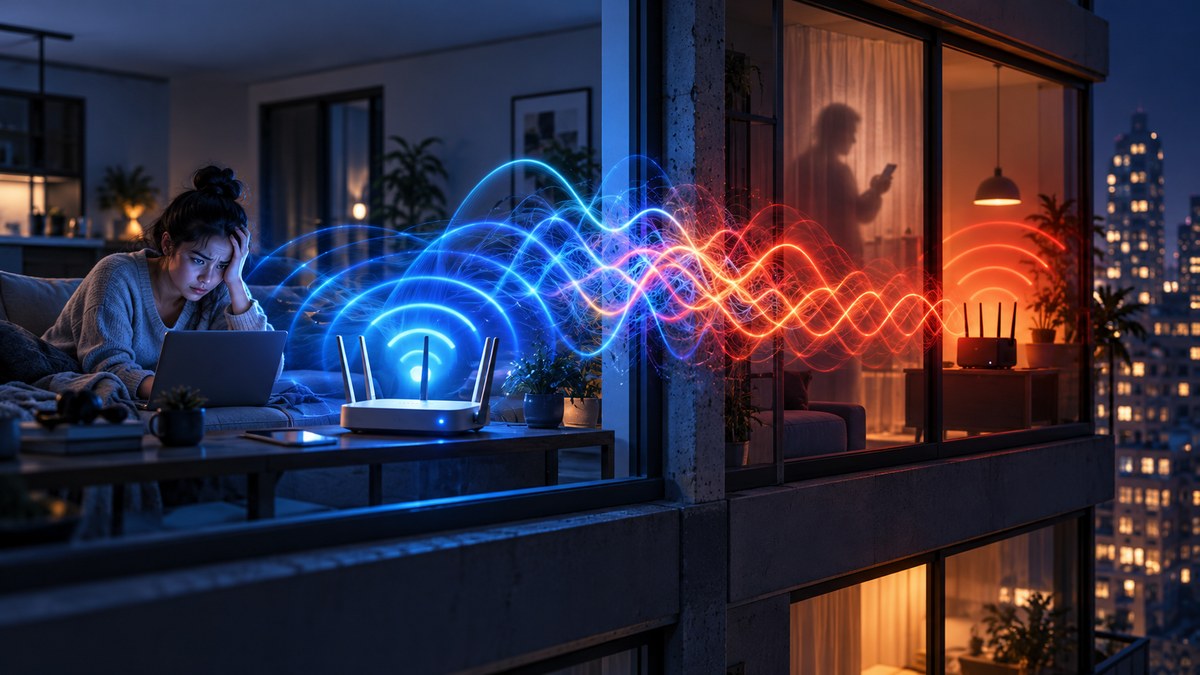
Your video call freezes right as you make a key point. The Netflix buffer spins for what feels like an eternity. You run a speed test and your 500 Mbps plan is delivering a sad 15 Mbps. You glance at your router, then at the wall. Somewhere on the other side of that drywall, your neighbor is probably streaming 4K video, gaming, or running a dozen smart home devices. It is tempting to blame them. But is your neighbor’s WiFi actually the villain here? The short answer is yes, but not in the way you might think. It is not about them stealing your bandwidth. It is about physics, radio waves, and the invisible traffic jam happening in the air around your apartment or suburban home.
Your neighbor’s WiFi can slow down your internet by clogging the same radio channels your router uses. This is called co-channel interference. It does not reduce your plan’s speed, but it causes packet loss and retransmissions that make everything feel sluggish. The fix involves switching to less crowded channels, using the 5 GHz band, or upgrading to a Wi-Fi 6 or 6E router. In dense living situations, a wired connection is the ultimate solution.
The Invisible Traffic Jam in Your Living Room
WiFi is just radio waves. Your router and your neighbor’s router are both shouting data packets into the same space. When too many routers try to talk on the same frequency, it creates a mess. Think of it like a crowded party where everyone is trying to have a conversation at the same volume. Nobody can hear clearly, so everyone keeps repeating themselves. That repetition is what slows down your real world speeds.
The problem is worst in the 2.4 GHz band. This band has only three non-overlapping channels (1, 6, and 11). In an apartment building or a dense suburban neighborhood, every router is fighting for space on those three channels. Your neighbor WiFi slowing down my internet is not a conspiracy. It is a numbers game. When 20 routers in a building all try to use channel 6, the airwaves get saturated.
Why Your ISP Speed Test Lies to You
You might run a speed test and see a high number, yet your web pages still load slowly. That is because speed tests measure the connection between your device and a nearby server. They do not measure the health of your local WiFi network. Interference from neighboring networks causes micro interruptions. These interruptions force your router to resend packets. The resends do not show up on a speed test, but they destroy your experience with streaming, gaming, and video calls.
This is where the phrase “neighbor WiFi slowing down my internet” becomes technically accurate. Your internet pipe from the ISP might be wide open, but the last few feet of that pipe (the WiFi link) is clogged with noise from next door.
A Simple Way to Check for Interference
Before you buy any new gear, you should confirm that interference is the real issue. Here is a numbered process to diagnose the problem:
- Download a WiFi analyzer app on your phone. Apps like WiFi Analyzer (Android) or NetSpot (iOS) show you a graph of nearby networks and the channels they use.
- Look for channel overlap. If you see many networks clustered on channels 1, 6, or 11, you have co-channel interference.
- Run a ping test to your router while your neighbor is likely active (evening hours). Use a command prompt or terminal and type
ping 192.168.1.1 -t(or your router’s IP). If you see spikes above 100 ms or frequent timeouts, interference is likely. - Check your router’s admin panel for the channel it is currently using. Many routers default to “auto,” which often picks the same crowded channel as everyone else.
- Temporarily switch your router to a less used channel manually and rerun the ping test. If the latency improves, you have found the culprit.
The Difference Between 2.4 GHz and 5 GHz
Most modern routers broadcast on two bands. The 2.4 GHz band travels farther and goes through walls better, but it is also the band that everyone uses. The 5 GHz band has many more channels and far less congestion. If your devices support 5 GHz (anything made in the last six years likely does), you should prioritize it.
| Band | Range | Wall Penetration | Channel Congestion | Best For |
|---|---|---|---|---|
| 2.4 GHz | Long | Good | Very High (few channels) | Smart home devices, older gadgets |
| 5 GHz | Short | Fair | Low (many channels) | Streaming, gaming, video calls |
| 6 GHz (Wi-Fi 6E) | Short | Fair | Very Low (new spectrum) | High bandwidth tasks in 2026 |
If you live in a house with thick walls, 5 GHz might not reach every room. But in an apartment, the shorter range of 5 GHz actually helps you because it reduces the chance that your signal bleeds into your neighbor’s space and creates interference for them.
How Modern Routers Help (and Hurt)
Wi-Fi 6 and Wi-Fi 6E routers, which became standard by 2026, include features like OFDMA and BSS Coloring. These technologies help routers share the airwaves more politely. OFDMA lets your router talk to multiple devices at once instead of one at a time. BSS Coloring tags your network’s data packets with a color code so your router can ignore packets from your neighbor’s network. This reduces the “wait your turn” problem that plagues older routers.
But there is a catch. If your neighbor still uses an old Wi-Fi 4 or Wi-Fi 5 router, it does not understand these polite protocols. It just shouts. That forces your fancy new router to fall back to older, slower methods of communication. The best router in the world cannot fix a neighbor who refuses to upgrade. In dense areas, upgrading only helps so much.
Practical Fixes That Work Right Now
You do not need to wait for your neighbor to upgrade. Here are actionable steps you can take today.
- Change your router’s channel manually. Use the analyzer app to find the least crowded channel. Set your router to that channel in the admin panel. Do not rely on “auto” mode.
- Separate your bands. Give your 2.4 GHz and 5 GHz networks different names (SSIDs). Connect your laptop and streaming devices to the 5 GHz network. Keep smart plugs and light bulbs on 2.4 GHz.
- Move your router away from shared walls. If your router sits against a wall shared with a neighbor, move it to a central location or near a window facing your own living space.
- Reduce your transmit power. Most routers let you adjust the power level. Lowering it can reduce the range of your signal, which means less interference for your neighbor and less interference coming back at you. It sounds counterintuitive, but a quieter signal is often a faster signal.
- Use Ethernet for stationary devices. If your gaming console, desktop PC, or smart TV is near the router, plug it in with a Cat6 cable. This removes WiFi from the equation entirely for those devices.
“In dense residential environments, the single most effective upgrade is not a faster internet plan. It is moving to the 5 GHz band or using a wired connection. The 2.4 GHz band in a city apartment is essentially a public utility at this point, and it is overloaded.” — Network engineer comment from a 2026 broadband forum.
When to Upgrade Your Router
If you have tried all the free fixes and your speeds still suffer during peak hours, it might be time to buy a new router. Look for a Wi-Fi 6E or Wi-Fi 7 model (available in late 2025 and 2026). These routers access the 6 GHz band, which is a wide open stretch of spectrum with very little interference. Think of it as a brand new highway with no traffic.
However, your devices also need to support 6 GHz. Most flagship phones and laptops released in 2024 and later do. If your devices are older, the new router will still help on the 5 GHz band thanks to better processing, but the real magic happens when everything speaks the same modern language.
The Limits of What You Can Control
It is important to be realistic. You cannot force your neighbor to upgrade their router or change their channel. You cannot stop them from downloading large files at 8 PM. The phrase “neighbor WiFi slowing down my internet” captures a real phenomenon, but it also implies a level of control you simply do not have over someone else’s home network.
What you can control is your own setup. You can choose the best channel. You can choose the best band. You can run Ethernet cables. You can buy a router that handles congestion better. In extreme cases, you can even ask your ISP about a business class connection that gives you better service level agreements, but that is usually overkill for a home user.
What About Powerline Adapters and Mesh Systems?
Powerline adapters send data through your home’s electrical wiring. They can be a good alternative if WiFi is hopelessly congested. But they have their own problems. Electrical noise from appliances can kill their speed. They also do not work well across different circuit breakers.
Mesh systems are popular in 2026, but they are not a magic bullet for interference. A mesh system uses multiple nodes to spread the signal. If those nodes are all fighting the same crowded airwaves, the mesh can actually make things worse by adding more noise. Only buy a mesh system if it supports a dedicated wireless backhaul channel (usually on 5 GHz or 6 GHz) that is separate from the channel your devices use.
Putting It All Together
If you are tired of blaming your neighbor and want actual results, follow this checklist:
- Use a WiFi analyzer to find a clean channel.
- Move your router to a better spot.
- Prioritize 5 GHz or 6 GHz for your important devices.
- Wire up anything that does not move.
- Consider a Wi-Fi 6E or Wi-Fi 7 router if you live in a high density area.
Taking Back Your Connection
Your neighbor is not out to get you. They are just using their internet the same way you use yours. The invisible radio waves in your home are a shared resource, and in 2026, that resource is more crowded than ever. But you do not have to suffer through buffering and lag. By understanding how WiFi interference works and making a few smart changes, you can reclaim your speed. Start with the free fixes today. If that does not cut it, invest in modern hardware that is built for a world where every apartment has a dozen networks fighting for space. Your streaming, your gaming, and your sanity will thank you.