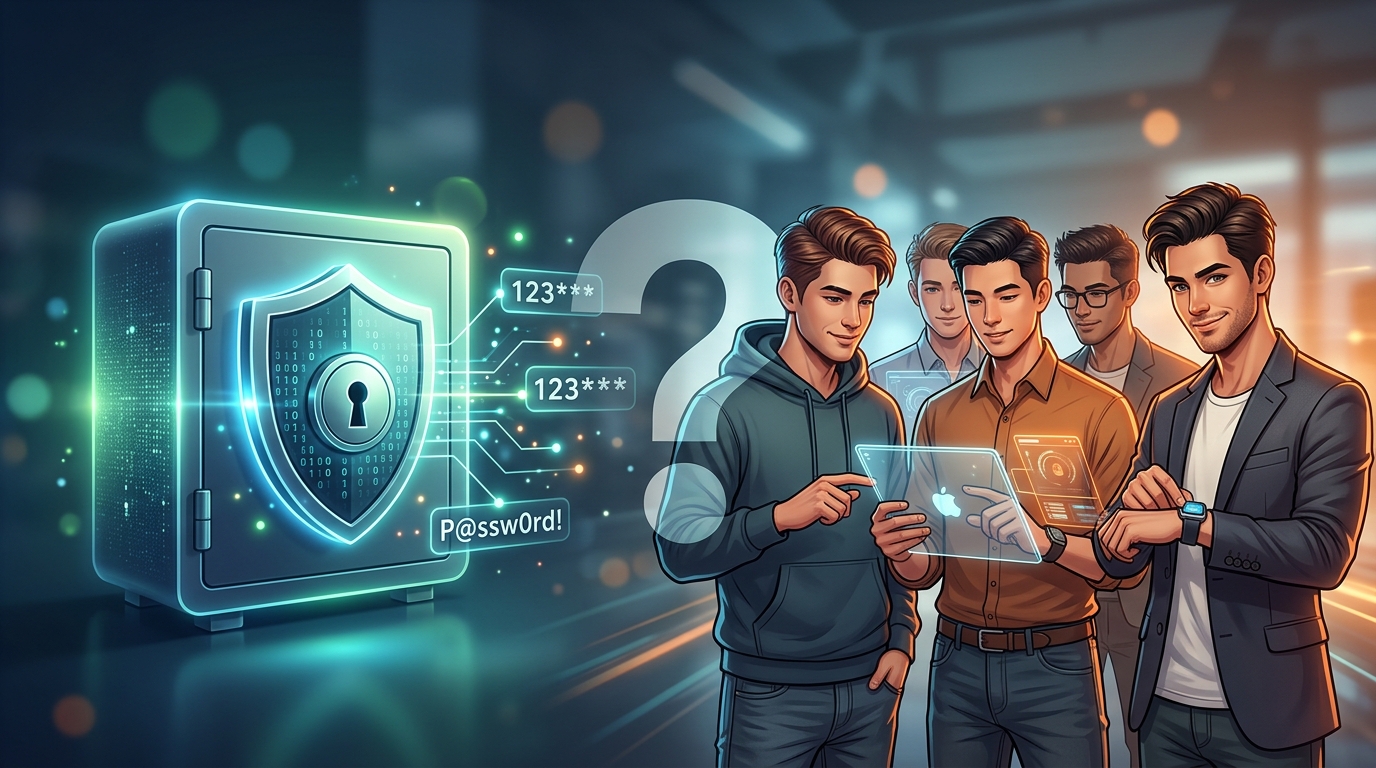
You’ve been told to use unique passwords for every account. You’ve been warned about data breaches. And now someone’s telling you to put all your passwords in one digital vault and trust it completely.
Sounds sketchy, right?
Password managers are generally safe when they use zero-knowledge encryption, meaning even the company can’t access your passwords. The biggest risks come from weak master passwords, phishing attacks, and device security rather than the managers themselves. Reputable services like Bitwarden, 1Password, and KeePass have strong track records, though no system is completely bulletproof. Your security depends on choosing a trusted provider and following basic protection practices.
How password managers actually protect your data
The security of password managers hinges on one critical concept: zero-knowledge encryption.
This means your passwords get encrypted on your device before they ever reach the company’s servers. The encryption key comes from your master password, which never leaves your computer or phone.
Even if hackers break into the password manager’s servers, they’d find encrypted gibberish. Without your master password, that data is useless.
Most reputable password managers use AES-256 encryption, the same standard banks and governments rely on. This encryption is so strong that cracking it would take billions of years with current technology.
Here’s what happens when you save a password:
- You enter your credentials into a website
- The password manager encrypts this data using your master password
- The encrypted blob gets stored locally and synced to the cloud
- When you need the password, it gets decrypted on your device only
The company running the service never has access to your unencrypted passwords. They literally cannot read them, even if they wanted to.
This is different from how most cloud services work. When you upload a photo to Google Photos, Google can see that photo. With a zero-knowledge password manager, the company sees nothing but encrypted data.
Real risks you should actually worry about
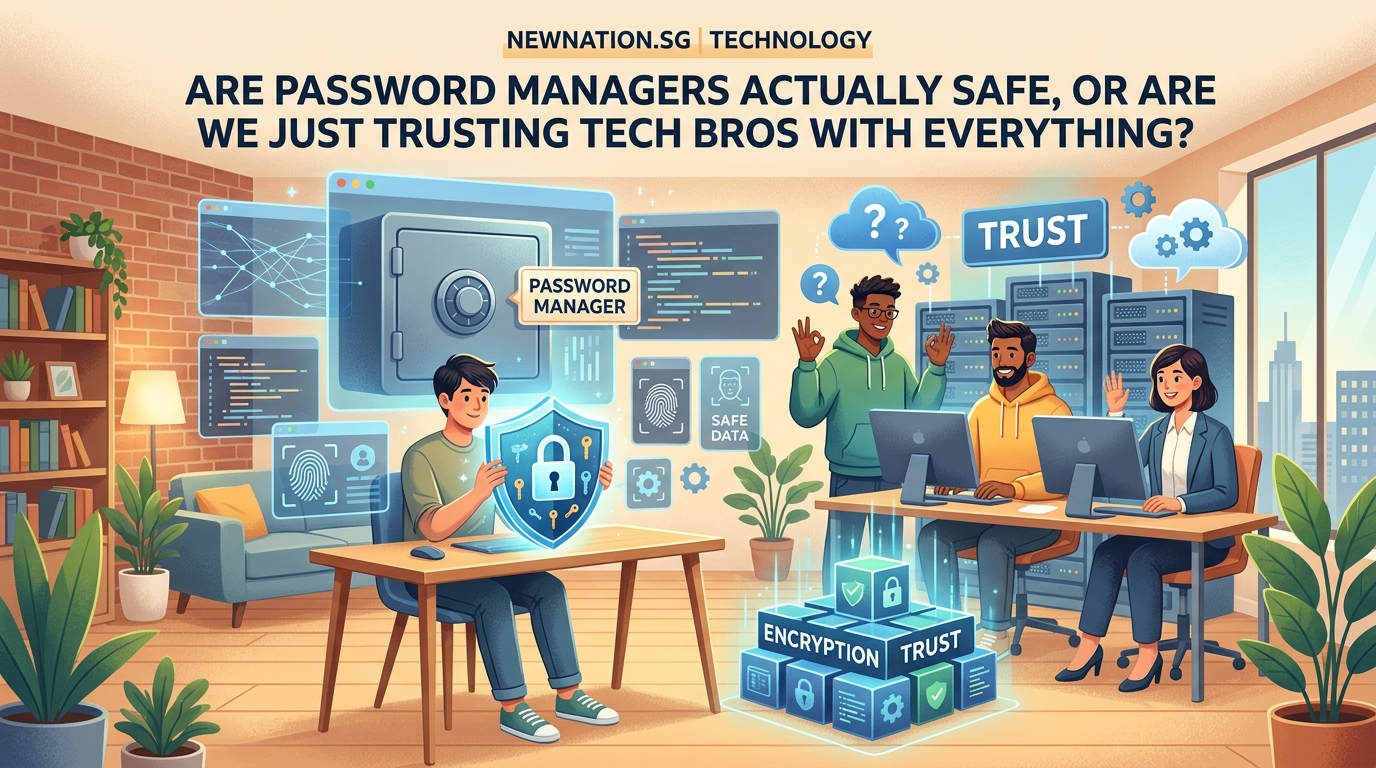
Password managers aren’t invincible. But the threats aren’t what most people think.
Your master password is the weakest link
If someone gets your master password, they own everything. This is why choosing a strong, memorable master password matters more than any other security decision you’ll make.
A weak master password like “password123” defeats the entire purpose. Even with AES-256 encryption, a simple password can be cracked through brute force attacks.
Consider using a passphrase instead. Something like “coffee-tornado-bicycle-sunset” is both memorable and incredibly difficult to crack.
Phishing attacks target you, not the vault
Hackers don’t need to break the encryption if they can trick you into handing over your master password.
Fake login pages that mimic your password manager are a real threat. Always check the URL carefully before entering your master password.
Some password managers include browser extensions that only auto-fill on legitimate websites. This provides protection against phishing sites that look identical to the real thing.
Device security matters just as much
Your password manager is only as secure as the device it runs on.
If your laptop has keylogging malware, it can capture your master password as you type it. If your phone gets stolen and has no lock screen, someone can access your vault.
Basic device hygiene becomes critical:
- Keep your operating system updated
- Use antivirus software on computers
- Enable biometric locks on phones
- Never use password managers on public or shared computers
The company itself could be compromised
Even with zero-knowledge encryption, password manager companies face risks.
In 2022, LastPass suffered a breach where attackers stole encrypted customer vaults. The encryption held, but users with weak master passwords were potentially vulnerable.
This incident highlighted an important truth: the company’s security practices matter. How they store encrypted data, protect their infrastructure, and respond to incidents all affect your safety.
Comparing different types of password managers
Not all password managers work the same way. The security model varies significantly.
| Type | How It Works | Security Level | Best For |
|---|---|---|---|
| Cloud-based | Syncs encrypted data across devices via company servers | High (with zero-knowledge) | Most users who want convenience |
| Local-only | Stores passwords only on your devices | Very high | Privacy enthusiasts comfortable with manual syncing |
| Browser-built-in | Integrated into Chrome, Safari, Firefox | Moderate | Casual users with low security needs |
| Enterprise | Company-managed with admin controls | High (but admins may have access) | Business environments |
Cloud-based managers like 1Password and Bitwarden offer the best balance of security and convenience for most people. You get strong encryption plus automatic syncing across all your devices.
Local-only options like KeePass give you complete control. Your password database never touches the cloud. But you’re responsible for backing it up and syncing it manually between devices.
Browser-built-in managers are convenient but limited. They lack advanced features like security audits, and your passwords are tied to that specific browser ecosystem.
What security experts actually recommend
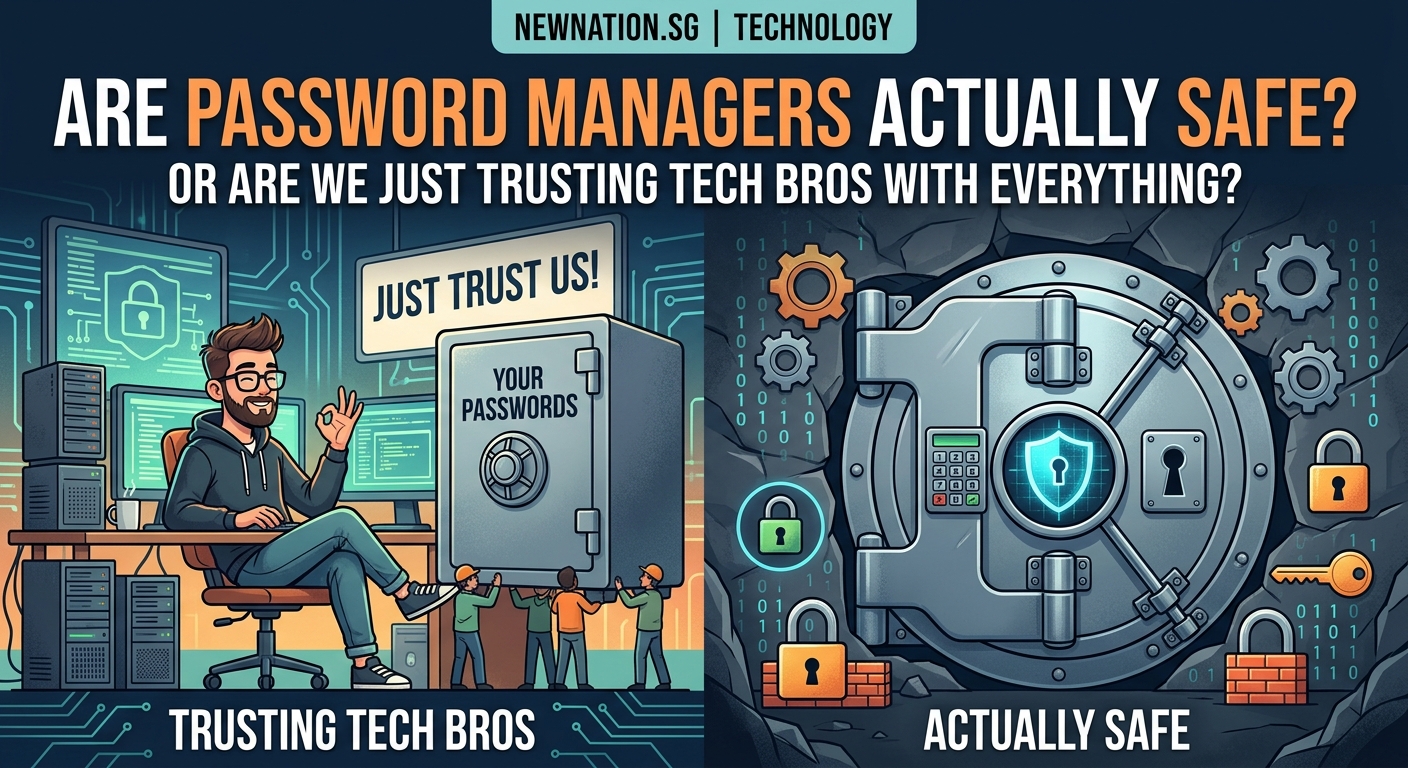
People who work in cybersecurity use password managers themselves. That tells you something.
The alternative to password managers is reusing passwords or writing them down. Both options are far more dangerous than using a reputable password manager with a strong master password. Perfect security doesn’t exist, but password managers are currently the best practical solution we have.
Security professionals focus on these practices:
- Choose a password manager with a proven track record and regular security audits
- Use a master password that’s at least 16 characters long
- Enable two-factor authentication on your password manager account
- Regularly review and update stored passwords
- Keep backup codes for critical accounts stored separately
The two-factor authentication point deserves emphasis. Even if someone somehow gets your master password, they still can’t access your vault without the second factor.
Most password managers support authenticator apps, hardware keys, or biometric verification as second factors.
Signs a password manager is trustworthy
Not every password manager deserves your trust. Look for these indicators:
Open source code
When a password manager’s code is publicly available, security researchers can audit it for vulnerabilities. Bitwarden and KeePass both offer open source options.
Closed source doesn’t automatically mean unsafe, but transparency builds confidence.
Third-party security audits
Reputable companies hire independent security firms to test their systems regularly. They publish the results publicly.
1Password, Bitwarden, and Dashlane all undergo regular audits and share the findings.
Clear privacy policy
The company should explicitly state that they use zero-knowledge encryption and cannot access your passwords.
If the privacy policy is vague about encryption or suggests the company can “help you recover” passwords without your master password, that’s a red flag.
Strong incident response history
How a company handles breaches matters as much as preventing them.
When LastPass was breached, their initial response was criticized for downplaying the severity. Compare this to 1Password, which has never had a customer vault compromised and is transparent about their security architecture.
Common misconceptions about password manager safety
Let’s clear up some myths that keep people from using these tools.
Myth: Putting all passwords in one place creates a single point of failure
Reality: You already have a single point of failure. It’s called password reuse.
When you use the same password across multiple sites, a breach at one site compromises all of them. This is far more dangerous than a properly encrypted password vault.
Myth: Hackers specifically target password managers
Reality: Hackers target whatever is easiest. Individual websites with poor security are much softer targets than encrypted password vaults.
The massive breaches you hear about (Equifax, Yahoo, LinkedIn) didn’t involve password managers. They involved companies storing passwords poorly.
Myth: I can just remember all my passwords
Reality: No, you can’t. Not if they’re actually secure.
A truly random 16-character password looks like “8$mK#9pL2@nX5vQ!”. You’d need dozens of these. The human brain isn’t designed for this.
Myth: Writing passwords in a notebook is safer
Reality: Physical notebooks can be lost, stolen, photographed, or destroyed. They don’t warn you about reused passwords or generate strong random ones.
A notebook might work if you live alone, never travel, and only use a handful of accounts. For everyone else, it’s impractical.
Setting up a password manager the right way
If you’ve decided to use a password manager, here’s how to do it securely:
- Choose a reputable provider based on the criteria mentioned earlier
- Create a master password that’s long, unique, and memorable
- Write down your master password and store it somewhere physically secure
- Enable two-factor authentication immediately
- Start by adding your most critical accounts (email, banking, work)
- Gradually migrate other accounts over time
- Use the password generator to create strong unique passwords for each site
- Set up emergency access for a trusted person if the service offers it
That physical backup of your master password is important. If you forget it and have no backup, your vault is permanently locked. The company cannot help you because of the zero-knowledge design.
Store this backup like you’d store important documents. A safe, a locked drawer, or with a trusted family member.
When you shouldn’t use a password manager
There are legitimate situations where password managers aren’t the right choice.
If you work in an environment with strict security protocols that prohibit them, follow those rules. Some government and military positions have specific requirements.
If you only have three or four accounts and can genuinely remember strong unique passwords for each, you might not need one. Though most people underestimate how many accounts they actually have.
If you’re uncomfortable with cloud storage of any kind and unwilling to manage local-only solutions like KeePass, you’ll need to find another approach.
The bigger picture of password security
Password managers solve the password problem, but they’re part of a larger security strategy.
You still need to:
- Watch for phishing emails and suspicious links
- Keep your devices updated and protected
- Use different email addresses for sensitive accounts when possible
- Monitor your accounts for unusual activity
- Enable two-factor authentication everywhere it’s available
Think of a password manager as the foundation. It makes everything else easier because you’re not juggling dozens of passwords in your head.
When you’re not worried about remembering passwords, you can focus on recognizing phishing attempts and other actual threats.
Making the decision that works for you
Are password managers safe? The answer is yes, with important caveats.
They’re safer than the alternatives most people use. They’re not perfect, but perfect doesn’t exist in security.
The real question is whether you trust the specific password manager you’re considering. Do your research. Read recent security audits. Check how they’ve handled past incidents.
Start with one of the well-established options: Bitwarden for open source, 1Password for polished experience, or KeePass for complete local control.
Your passwords are probably already less secure than you think. A password manager won’t make things worse. Used properly, it dramatically improves your security posture.
The tech bros aren’t asking for blind trust. The encryption math works regardless of who implements it. You’re trusting mathematics, not personalities.