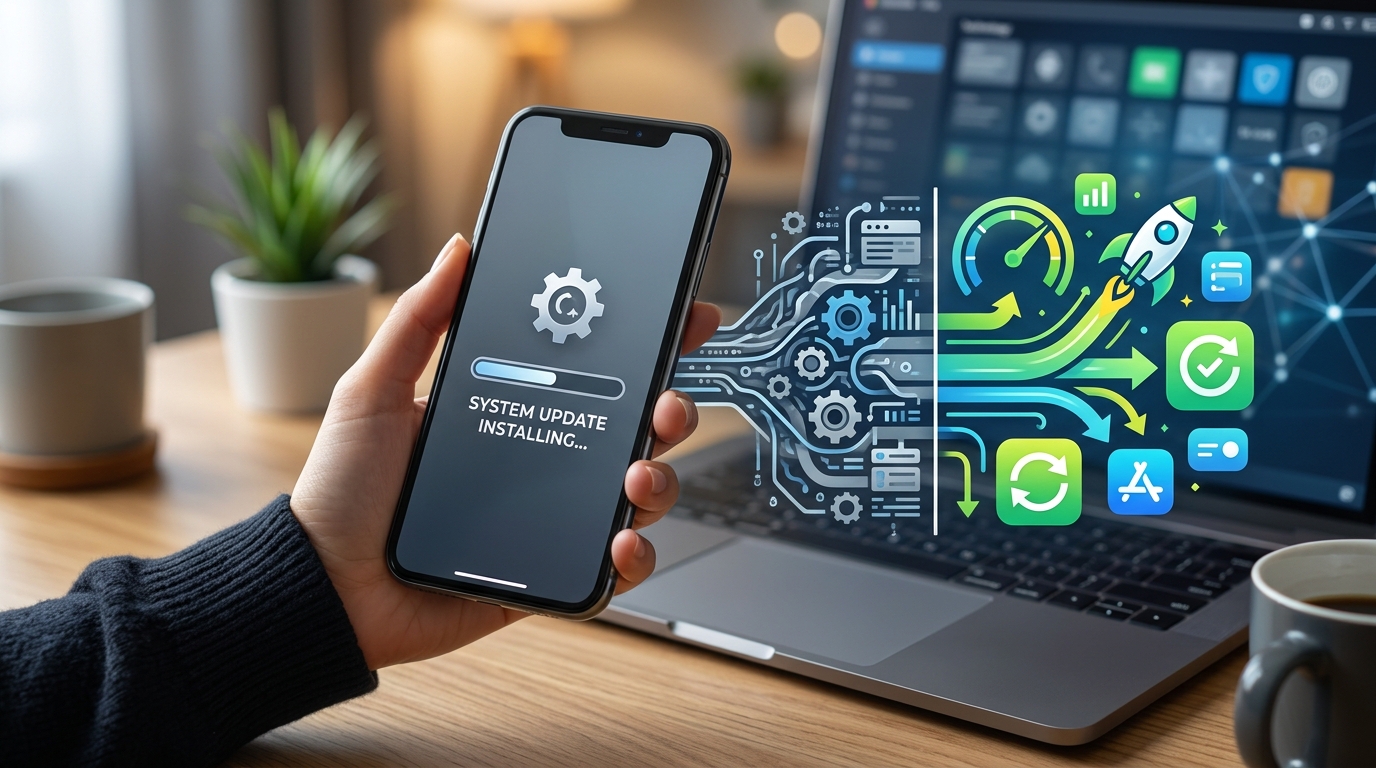
You updated your phone last night. This morning, apps take forever to open. Scrolling feels sticky. Your battery drains faster than usual. Sound familiar?
Phone slowdowns after updates happen because new software demands more resources, background processes multiply, and cached data conflicts with fresh code. Most performance issues resolve through simple steps like clearing cache, managing storage space, and adjusting settings. Hardware limitations become more apparent with each update, but proper maintenance restores most lost speed without factory resets.
Software Gets Heavier With Every Release
Operating system updates add new features. Those features need processing power.
Your phone’s processor hasn’t changed. The RAM stays the same. But the software now does more work.
Think of it like adding passengers to a bus. The engine stays identical, but acceleration suffers with each new rider.
iOS and Android updates include:
- Enhanced security scanning that runs constantly
- New animation effects that require graphics processing
- Additional background services monitoring battery health
- Expanded notification systems tracking more app behaviors
- Improved voice assistants listening for wake words
Each feature sounds small. Together, they consume resources your older device struggles to provide.
App developers also update their software to match new operating systems. Instagram, Facebook, and TikTok all grow larger with each version. They assume your phone has the latest specs.
Background Processes Multiply After Updates
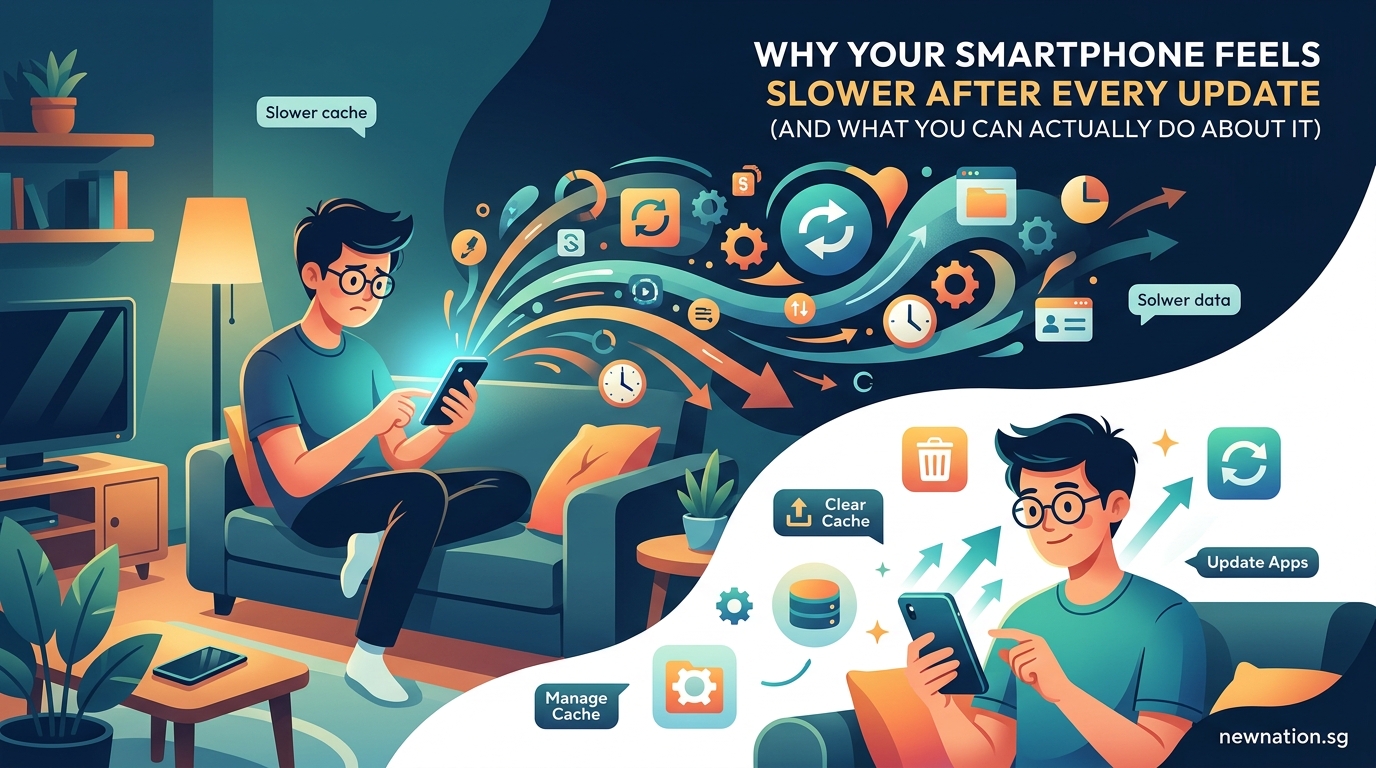
Updates reset many system behaviors. Processes you previously disabled often restart.
Location services turn back on. App refresh settings revert to defaults. Backup services begin syncing everything.
Your phone suddenly runs dozens of tasks simultaneously. Each one pulls from the same limited battery and processor.
Check your settings after any major update:
- Open battery usage statistics and identify apps consuming excessive power
- Review location permissions and disable constant tracking for non-essential apps
- Turn off background app refresh for social media and shopping apps
- Disable automatic downloads for app updates, music, and videos
- Stop photo backup services from running continuously throughout the day
These background tasks explain why your phone feels warm in your pocket. The processor never rests.
Cache Files Create Conflicts
Your phone stores temporary files to speed up app loading. These cache files work perfectly with your old software version.
Then you update.
The new operating system expects different file structures. Old cached data doesn’t match the new code. Apps hesitate, trying to reconcile the mismatch.
Safari or Chrome might load pages slowly. Photos take longer to display thumbnails. Messages lag when scrolling through conversations.
Clearing cache solves most conflicts:
- Safari: Settings > Safari > Clear History and Website Data
- Chrome: Settings > Privacy > Clear Browsing Data
- System Cache: Settings > General > iPhone Storage (wait for recommendations)
- App Cache: Delete and reinstall problematic apps
- Keyboard Cache: Settings > General > Reset > Reset Keyboard Dictionary
You lose some convenience. Websites reload from scratch. Apps forget your preferences. But performance improves dramatically.
Storage Space Affects Everything
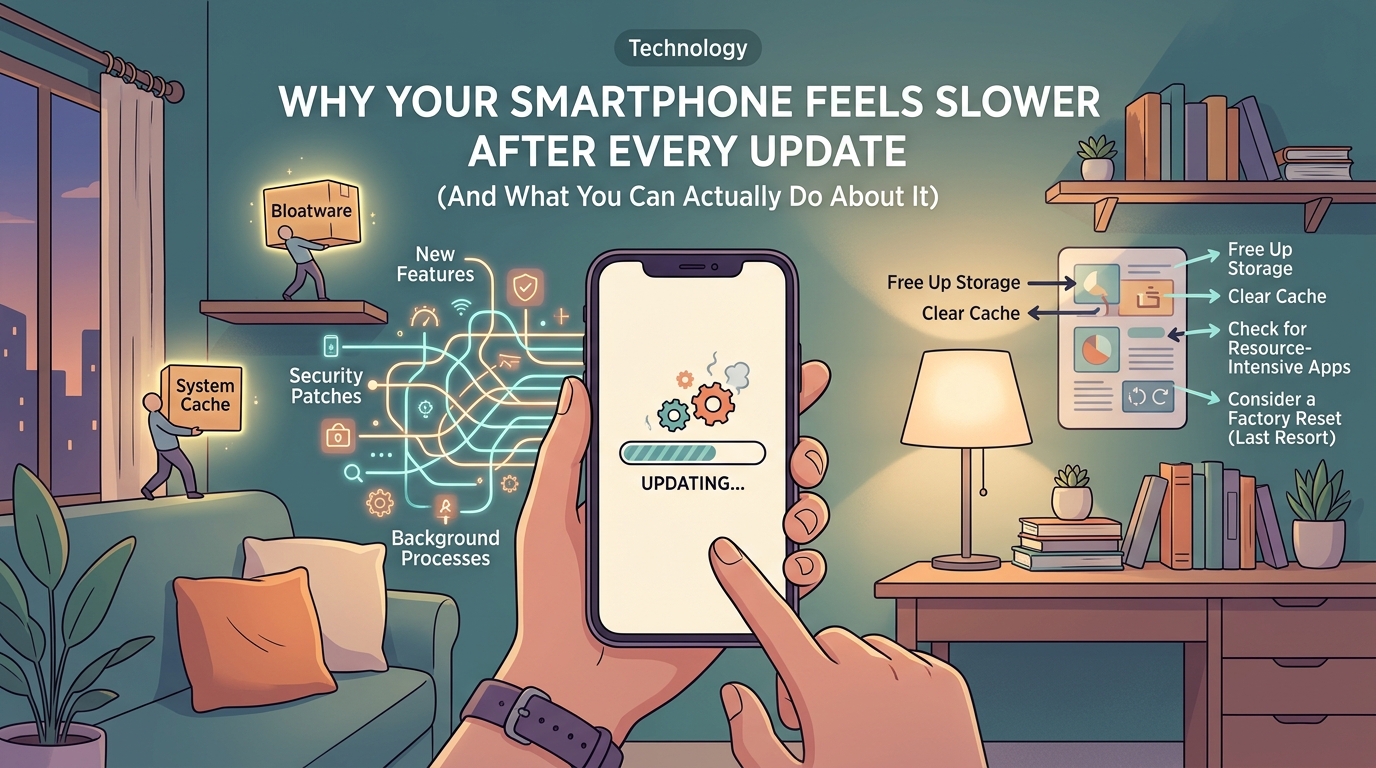
Updates install while your existing system remains active. The process creates duplicate files temporarily.
Many phones end up with less than 10% free storage after updates complete. This cripples performance.
Operating systems need breathing room. They constantly write temporary files, move data around, and create backup copies. Without space, everything grinds slower.
| Storage Remaining | Performance Impact | What Happens |
|---|---|---|
| Above 20% | Minimal slowdown | Normal operation with occasional delays |
| 10-20% | Noticeable lag | Apps close unexpectedly, camera struggles |
| 5-10% | Severe issues | Frequent freezing, failed app launches |
| Below 5% | Near unusable | System warnings, disabled features |
Free up space immediately:
- Delete unused apps you haven’t opened in three months
- Remove downloaded videos from Netflix, YouTube, or streaming services
- Clear out old message threads with hundreds of photos
- Upload photos to cloud storage and enable “optimize storage”
- Delete browser downloads you no longer need
Aim for at least 15% free storage. Your phone needs that buffer to function properly.
Hardware Limitations Become Obvious
Each software generation assumes better hardware exists. Developers optimize for newer processors, improved cameras, and faster memory.
Your three-year-old phone runs code designed for this year’s flagship models.
The processor handles calculations differently now. Graphics rendering uses new techniques your GPU barely supports. Memory management expects faster RAM speeds.
You notice this most in:
- Camera app taking seconds to open
- Keyboard appearing slowly when typing
- Switching between apps feeling sluggish
- Games stuttering during complex scenes
- Video calls freezing or dropping quality
“Software updates prioritize new features over backward compatibility. Companies want you excited about capabilities, not worried about performance on older devices. The business model depends on regular hardware upgrades.” – Former Apple engineer speaking anonymously
This isn’t planned obsolescence in the conspiracy sense. But it’s not accidental either.
Phone makers know updates slow older devices. They balance new features against performance costs. New features usually win.
Index and Spotlight Rebuilding Takes Days
After major updates, your phone reindexes everything. Spotlight search catalogs every file, photo, message, and email again.
This background process runs constantly for 24 to 72 hours. Your phone feels slower because it’s literally rebuilding its internal database.
You can’t stop this process. You can only wait it out.
Keep your phone plugged in overnight. Let it complete the indexing while you sleep. Performance improves once the process finishes.
Some users report their phone feeling hot during this period. That’s normal. The processor works overtime cataloging thousands of items.
Battery life also suffers temporarily. The indexing drains power faster than normal usage.
Give it three days before judging post-update performance. Many slowdown complaints resolve naturally after the reindexing completes.
Settings Reset to Default Values
Updates often revert customizations you made months ago. Motion effects turn back on. Transparency increases. Animations extend.
These visual flourishes look impressive on new phones. They drag down older hardware.
Reduce motion and visual effects:
- Reduce Motion: Settings > Accessibility > Motion > Reduce Motion (ON)
- Reduce Transparency: Settings > Accessibility > Display > Reduce Transparency (ON)
- Limit Frame Rate: Settings > Accessibility > Motion > Limit Frame Rate (ON)
- Auto-Brightness: Settings > Accessibility > Display > Auto-Brightness (OFF, set manually)
- True Tone: Settings > Display & Brightness > True Tone (OFF on older devices)
These changes make your interface less flashy. But apps open faster. Scrolling smooths out. Battery lasts longer.
You sacrifice pretty animations for actual usability. That’s a fair trade on phones older than two years.
App Compatibility Issues Emerge
Developers rush to update apps for new operating systems. Sometimes they introduce bugs.
Your banking app crashes on launch. Your fitness tracker won’t sync. Your favorite game freezes at the loading screen.
These aren’t your phone’s fault. The apps need patches.
Check for app updates daily for two weeks after a system update. Developers release fixes as problems surface.
If an app remains broken:
- Check the App Store reviews to confirm others have the same issue
- Contact the developer through the app’s support page
- Temporarily use the mobile website version if available
- Roll back to a previous app version using backup tools (advanced users only)
- Wait for the next app update, usually within a week
Critical apps like banking or work tools might force you to delay system updates. That’s reasonable. Stability matters more than new emoji.
What Actually Works to Fix Slowdowns
You’ve read the reasons. Now fix the problem.
Start with the least disruptive solutions:
Immediate Actions (takes 10 minutes):
– Restart your phone to clear temporary memory issues
– Close all open apps by swiping up from the app switcher
– Delete large message threads with hundreds of photos
– Clear Safari or Chrome cache and browsing history
– Free up at least 5GB of storage space
Settings Adjustments (takes 15 minutes):
– Disable background app refresh for non-essential apps
– Turn off automatic downloads in App Store settings
– Reduce motion and transparency in accessibility settings
– Stop location services for apps that don’t need constant tracking
– Disable “Hey Siri” listening if you rarely use voice commands
Deep Cleaning (takes 30 minutes):
– Delete and reinstall your five most-used apps
– Remove old iOS updates in Settings > General > iPhone Storage
– Clear keyboard dictionary to remove learned word conflicts
– Sign out and back into iCloud to refresh sync services
– Reset network settings if WiFi and cellular feel slow
Last Resort (takes 2 hours):
– Back up your phone completely to computer or cloud
– Perform a factory reset through Settings > General > Reset
– Restore from backup and test performance
– Manually reinstall apps one by one instead of restoring all at once
– Contact manufacturer support if problems persist
Most users see improvement after the immediate actions and settings adjustments. Factory resets rarely provide lasting benefits unless you have serious software corruption.
When Updates Actually Improve Performance
Not every update slows your phone. Security patches and minor releases often boost speed.
Apple’s iOS 14.5, 15.4, and 16.2 all improved performance on older devices. Android 12L specifically optimized tablet and large phone performance.
These updates:
- Fix memory leaks that caused slowdowns
- Optimize battery management algorithms
- Improve thermal management so processors throttle less
- Patch bugs that caused apps to crash
- Enhance storage management to free up space automatically
Read update release notes before installing. Look for phrases like “performance improvements” or “bug fixes for older devices.”
User reports on forums help too. Wait three days after a major update drops. See what others with your phone model experience. If reports seem positive, update confidently.
Skipping updates entirely creates security risks. But delaying by a week lets others discover major problems first.
Your Phone Still Has Life Left
Slowdowns feel permanent. They’re usually temporary.
Most performance issues resolve through maintenance you should do regularly anyway. Clear cache monthly. Manage storage weekly. Review background processes after every update.
Your phone won’t feel brand new again. But it can return to the speed you remember from six months ago.
That’s good enough for another year of use. Maybe two if you maintain it properly.
The update didn’t break your phone. It just revealed that your phone needs more attention than it used to. Give it that attention, and it’ll keep working just fine.
Leave a Reply